Webpage to PDF · Chrome extension
A webpage to PDF Chrome extension for the page you already have open.
Short answer: an online converter gets only a link and loads the page again on its own server. A Chrome extension converts the page that is already open in your browser. That one difference decides which pages you can save, and where your page goes.
What an extension can save that a URL converter cannot
- Pages you are signed in to. Web mail, course portals, dashboards, paid articles you can read. A converter's server is not signed in, so it gets a login page instead.
- Localhost and internal tools.
http://localhost:3000, a staging site or a company wiki is not reachable from the internet. The extension does not need it to be. - The page as you see it now. Content you expanded, filtered or scrolled into view is already loaded in your tab.
What stays the same on every page
- Nothing is uploaded. PageCarry builds the PDF inside the extension. The page text never goes to a conversion server.
- No account and no watermark. Install it and save. There is nothing to sign up for.
- Every setting is included. Article, full page or selection; A4, Letter or one continuous page; serif or sans-serif; images kept or skipped. The current version has no clip limit and no purchase.
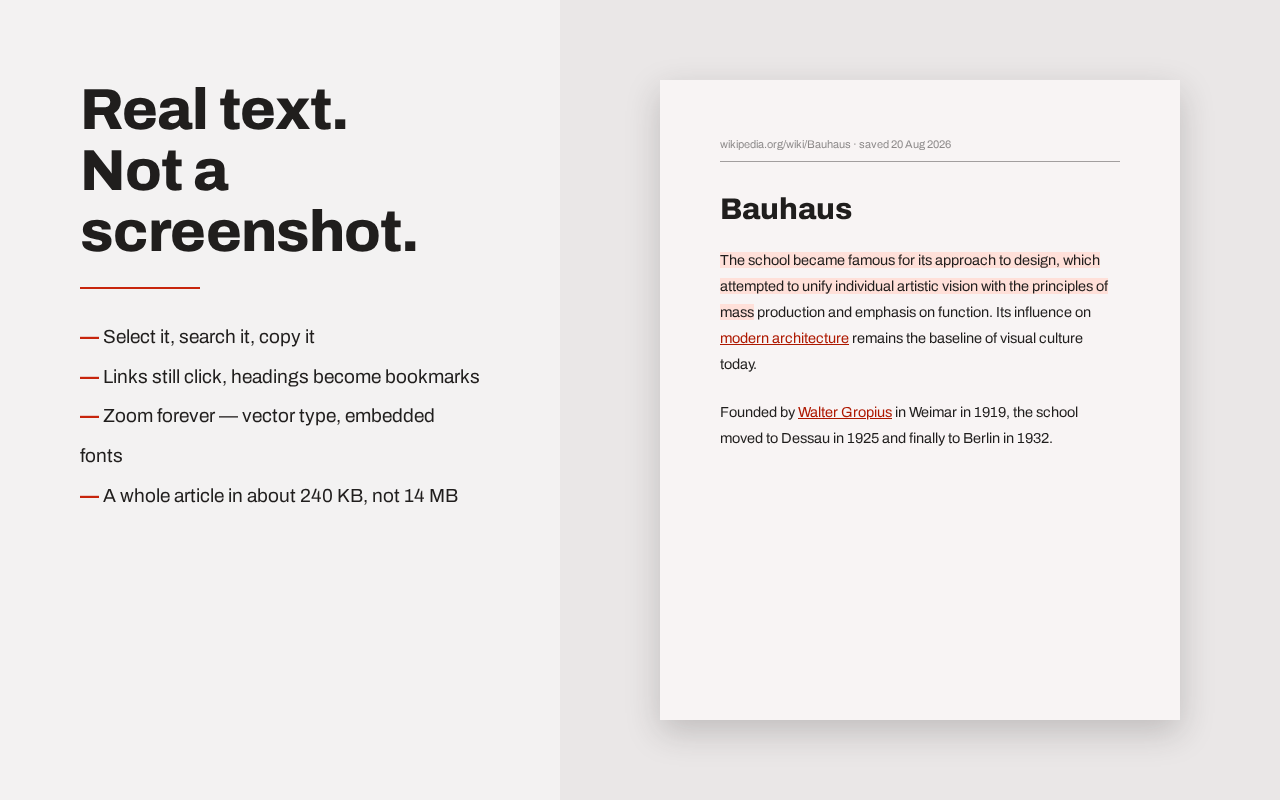
- Real text. The PDF has selectable, searchable text, working links and heading bookmarks — not a screenshot of the page.
How to use it
- Add PageCarry to Chrome.
- Open the page you want to keep, signed in if it needs a login.
- Click the PageCarry icon and choose what to save and the page size.
- Click Save as PDF, or press Alt+Shift+D (⌥+⇧+D on a Mac). The PDF goes to your Downloads folder.
Permissions, in plain words
PageCarry reads only the tab you click on, when you click. It does not ask for access to all your websites at install time, and it does not use Chrome's debugging permission, so no "is debugging this browser" banner appears. The privacy policy lists everything it stores and sends.
When an online converter is still the better choice
If you have only a link and no browser open — for example on a server, in a script, or for hundreds of URLs at once — a URL-based service fits that job. PageCarry saves pages you open yourself, one at a time.
Common questions
Which pages can't be saved?
Chrome does not let extensions run on its own pages, such as chrome://settings or the Chrome Web Store. Some sites block their images from being copied; PageCarry still saves the PDF and tells you how many images failed.
Does the PDF look exactly like the website?
No. PageCarry rebuilds the content as a readable document with its own typography. If you need the exact screen layout, Chrome's own Print to PDF keeps it closer. See both ways compared.